Importing FatturaPA vendor invoices into Dynamics 365 Finance & Operations: from SDI to posting
How a FatturaPA file received through the Sistema di Interscambio becomes a posted vendor invoice in Dynamics 365 Finance & Operations, which steps run unattended, and which documents need an operator.
In Italy every invoice between businesses is issued in the FatturaPA XML format and delivered by the Sistema di Interscambio (SDI) of the Agenzia delle Entrate to the recipient. For an Italian legal entity on Dynamics 365 Finance & Operations this means that vendor invoices do not arrive by email or on paper: they arrive as XML files, through SDI, to the channel the company has registered. Accounts payable automation in Italy starts from this file, which already carries the vendor identifiers, the lines, the VAT summary, the payment terms and any attachments.
This guide describes how a received file becomes a posted vendor invoice with Memento's Italian Electronic Invoicing app: the steps that run unattended, the points where the system stops and waits, and what the operator does at each of them. The last section states where the app ends and the standard Finance & Operations features take over, which is the question most often asked by groups automating accounts payable in an Italian subsidiary.
How the invoices reach Finance & Operations
SDI delivers a vendor invoice to the recipient code (codice destinatario) written in the file by the vendor, or, if the company has registered a default code on the Fatture e Corrispettivi portal of the Agenzia delle Entrate, to that code regardless of what the vendor wrote. The code identifies a transmission channel accredited with SDI.
With the Italian Electronic Invoicing app, that channel is the accredited intermediary's: SDI delivers the company's invoices to the intermediary, and Finance & Operations collects them from there. The recipient code is provided at activation, together with the credentials of the intermediary's portal, and is registered as the default code on the Fatture e Corrispettivi portal, so that delivery does not depend on the code entered by each vendor. Finance & Operations downloads the received files from the intermediary's system with a batch job, which each time retrieves only the documents received since the last successful request, or on request from the inbound documents page. Single XML files or ZIP folders can also be imported by hand, for example the archive of a previous provider when the company changes channel.
The process in five steps
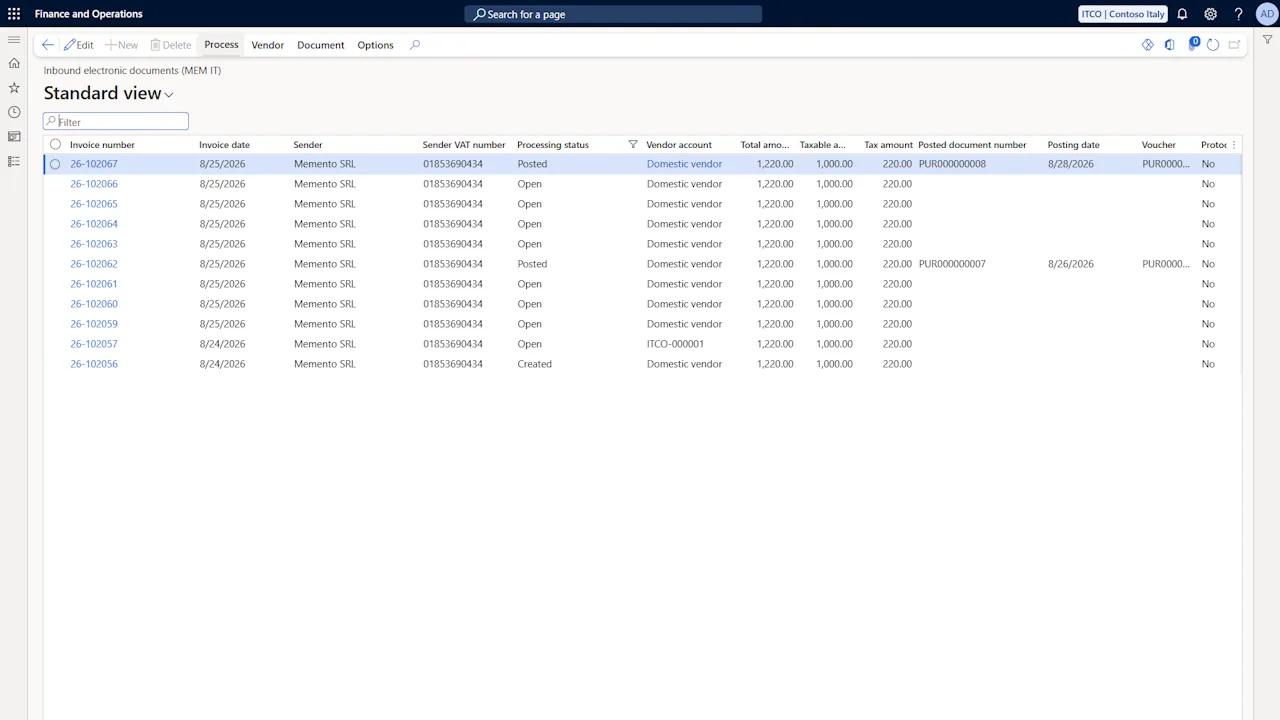
- Retrieval. The received documents are listed in the inbound electronic documents page with the total, taxable and tax amounts declared in the file.
- Vendor resolution. The sender's VAT number or fiscal code is matched to a vendor. When no vendor matches, the document waits with the status Vendor missing.
- Creation of the pending vendor invoice. The lines are built from the file, by purchase order matching or by mapping rules, and the pending vendor invoice is created with lines, totals and attachments.
- Posting. The invoice follows the standard Finance & Operations process: totals matching, purchase order matching, approval workflow, posting. After posting, the received document shows the posted invoice number, the posting date and the voucher.
- Conservation protocol. The registration references of the posted invoice are sent to the preservation system, completing the 10-year preservation of the received document.
Steps 1, 2, 3 and 5 can run in batch. Based on the parameters, the download job also resolves the vendor and creates the pending invoice in the same run, so that an invoice from a known vendor with resolvable lines reaches the accounts payable clerk as a pending invoice without anyone touching it.
The status of a received document tells where it is in the process:
| Status | Meaning |
|---|---|
| Open | Ready for the creation of the vendor invoice |
| Vendor missing | The sender could not be matched to a vendor |
| Created | The pending vendor invoice exists and has not been posted |
| Posted | The vendor invoice is posted; number, date and voucher are shown on the document |
Vendor resolution
The vendor is resolved from the identifiers in the file: the VAT number, compared with the vendor's tax exempt number with or without the IT prefix or with its registration IDs, or the fiscal code. At least one of these must be filled in on the vendor card for the match to happen; vendor cards without identifiers are the usual reason for a Vendor missing document from a vendor that does exist.
Three actions cover the cases:
- Assign vendor repeats the automatic resolution, after the identifiers have been completed on the vendor card. The vendor can also be entered directly on the document.
- Create vendor creates the vendor card from the data in the file, including the bank account built from the payment coordinates, with the vendor group and method of payment set as defaults in the parameters, and opens the card for completion.
- Create bank account adds the bank account from the file to a vendor that already exists; an account with the same IBAN is reused.
When the vendor of a document changes, its lines are rebuilt.
Lines: purchase order matching and mapping rules
Each line of the file is resolved in one of two ways.
Lines that reference a purchase order of the company, in the DatiOrdineAcquisto section of the file, are matched to the purchase order lines by line number or by price within the price tolerance percentage of the accounts payable parameters. The standard matching then applies on the pending invoice.
All other lines get their content from the mapping rules, evaluated in this order:
- If the vendor's item code in the file (CodiceArticolo) is registered among the external item descriptions of the vendor, the line is created as an item line.
- The rules of the vendor whose external code or external description matches the line; both accept the
*and?wildcards. - The rule of the vendor marked as default.
- The same evaluation on the rules of the vendor group.
A rule assigns the procurement category, whose posting setup supplies the ledger account, and optionally the item sales tax group. When the rule leaves the tax group empty, it is resolved from the VAT rate and nature of the line through the item sales tax groups flagged for electronic invoicing, or from the defaults of the category. For most vendors one default rule with the category is enough; vendors with several categories of expense get one rule per external description.
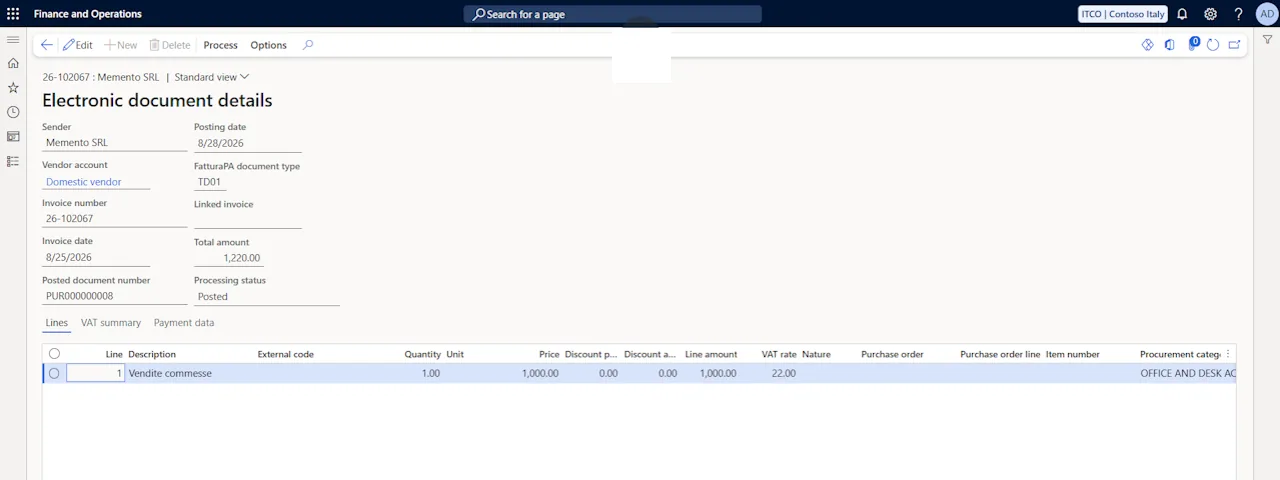
A line that remains without an item, a category or a purchase order match blocks the creation, and the document stays Open. The operator either completes the line in the document details, where the item number, the procurement category and the item sales tax group are editable, or adds a rule and executes the mapping again. Executing the mapping rebuilds the lines and discards manual completions. The invoice can also be created with the header only, leaving the lines to manual entry.
The pending vendor invoice
The Create document action, for one document or for a selection, generates the pending vendor invoice with:
- The lines resolved as above, with discounts and surcharges (ScontoMaggiorazione) and social security contributions (DatiCassaPrevidenziale) carried over.
- Credit notes (document types TD04 and TD08) as negative quantities and amounts, with the reference to the corrected invoice in the description.
- The totals declared in the file as imported totals, next to the calculated ones. This uses the standard Vendor invoice automation feature, which must be enabled; posting then applies the matching policy configured in the accounts payable parameters.
- The XML file, its readable rendering with the AssoSoftware style sheet and the attachments embedded in the file as attachments of the invoice.
From this point the invoice is a standard pending vendor invoice. Matching policies, approval workflows and the posting itself are the ones configured in Finance & Operations; the app adds nothing to them and takes nothing away. The received document opens the pending invoice, and the posted invoice has a tab that opens the received document. If the pending invoice is deleted, the received document returns to Open. A received document can also be linked to an invoice already posted by hand, instead of creating a new one.
Posting and preservation
Posting updates the received document with the posted invoice number, the posting date and the voucher. The registration references are then reported to the preservation system, by action or by the dedicated batch job. This step completes the legally compliant preservation of the received invoice: the XML file was preserved by the intermediary when it was received, and the protocol adds the accounting registration to it. Documents imported manually from files are outside the preservation flow, because they did not pass through the intermediary.
Documents that need attention
The workspace counts the received documents waiting for someone: Inbound without vendor and Inbound to process. Each counter opens the list already filtered, with the actions available in place.
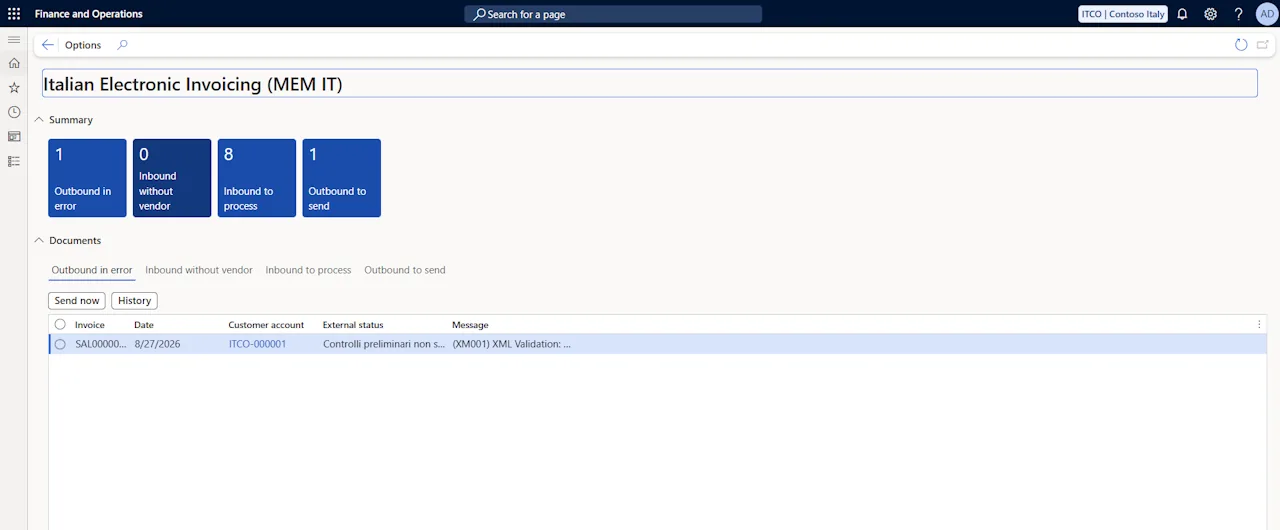
What each case means:
- A document in Vendor missing. The identifiers in the file match no vendor card. Complete the identifiers on the existing card and assign the vendor, or create the vendor from the document.
- A document still Open after the batch run. At least one line could not be resolved. The document details show which lines lack an item, a category or a purchase order match; complete them or add a rule.
- Imported totals different from the calculated ones. The totals page of the pending invoice shows both; the matching policy configured in the accounts payable parameters decides what happens at posting.
- Invoices from before the go-live. They were delivered to the previous channel. Export them from the previous provider and import the ZIP by hand; they enter the same process, without the conservation protocol.
Every call between Finance & Operations and the intermediary's systems is recorded in the interface log with its context, times, HTTP status and outcome, and the request and response payloads can be exported. A daily email from the intermediary's portal lists the rejected documents and the documents in error of the previous day.
Where the app ends
Groups that automate accounts payable in an Italian subsidiary usually arrive with a list that mixes what the file makes unnecessary, what the app does and what remains standard Finance & Operations. The division is this:
- Not needed. Scanning and OCR. The FatturaPA file is structured data: vendor identifiers, lines, VAT summary, payment instalments and attachments are read from it directly.
- Done by the app. Download from the channel, vendor recognition and creation, line content by purchase order matching or by rules, creation of the pending invoice with totals and attachments, link between received document and posted invoice, conservation protocol, monitoring.
- Standard Finance & Operations. Ledger accounts through the posting setup of procurement categories, purchase order matching and matching policies, vendor invoice approval workflows, posting. The app does not allocate accounts from historical postings; the allocation is deterministic, through categories and rules, and anything beyond that is configured in the standard features or in other tools.
The same app sends the sales invoices and the reverse charge integrations through the same channel; the product page covers the sales cycle, the pricing and the implementation steps.